
Firefox's built-in tab groups cannot contain pinned tabs. TabPods can: a pod may mix pinned and regular tabs, so you can keep, say, your work mail pinned and still tuck it away together with the rest of your work tabs.


Features
- Group any tabs into a pod, pinned tabs included.
- Click the capsule to collapse or expand the pod. Collapsed tabs are really hidden: they are skipped by Ctrl+Tab, Ctrl+PgDn and “Close Other Tabs”.
- Switching to a tab of a collapsed pod (for example from the List all tabs menu or by reopening it) expands the pod. Collapsing the pod of the current tab switches to another tab.
- Drag and drop: drop a tab right after a capsule or between two tabs of a pod and it joins the pod; drag a tab out and it leaves. Between the last tab of a pod and the capsule of the next one, a tab dropped closer to that last tab joins its pod, and one dropped closer to the capsule stays out of pods. While you drag, the underline of the tab shows the pod it will join, and the capsules move aside together with the tabs.
- New tabs opened from a tab of a pod are placed after the pod, not inside it.
- 9 colors, optional names (shown in the tooltip).
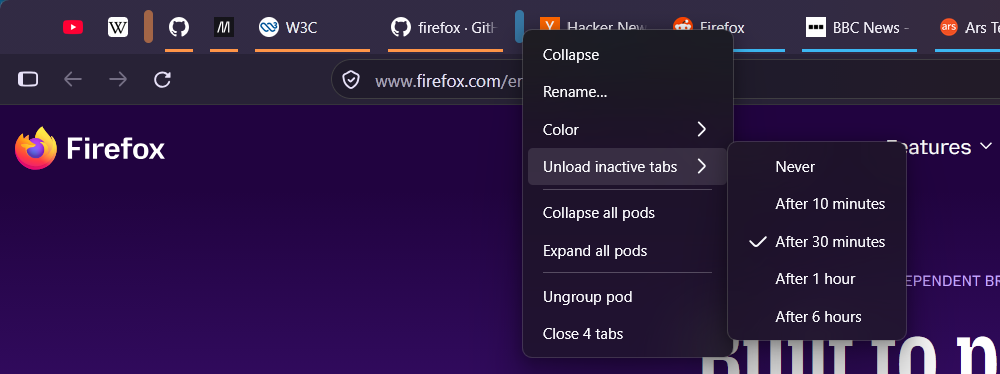
- Unloading of inactive tabs, set per pod: a tab that was not switched to and played no audio or video for 10 minutes, 30 minutes, 1 hour or 6 hours is unloaded to free memory, pinned and collapsed tabs included. It stays in its pod and loads again when you switch to it. Tabs that Firefox does not let unload, such as
about:configor a page asking to stay because of unsaved input, are left alone. - Pods, colors, unloading and the collapsed state survive a browser restart. Reopening a closed tab (Ctrl+Shift+T) puts it back into its pod.
- Interface in English, Russian, Ukrainian, German, French, Spanish, Italian, Portuguese (Brazil), Polish, Japanese and Chinese (Simplified and Traditional).
- Works with or without Tab Mix Plus.
Usage
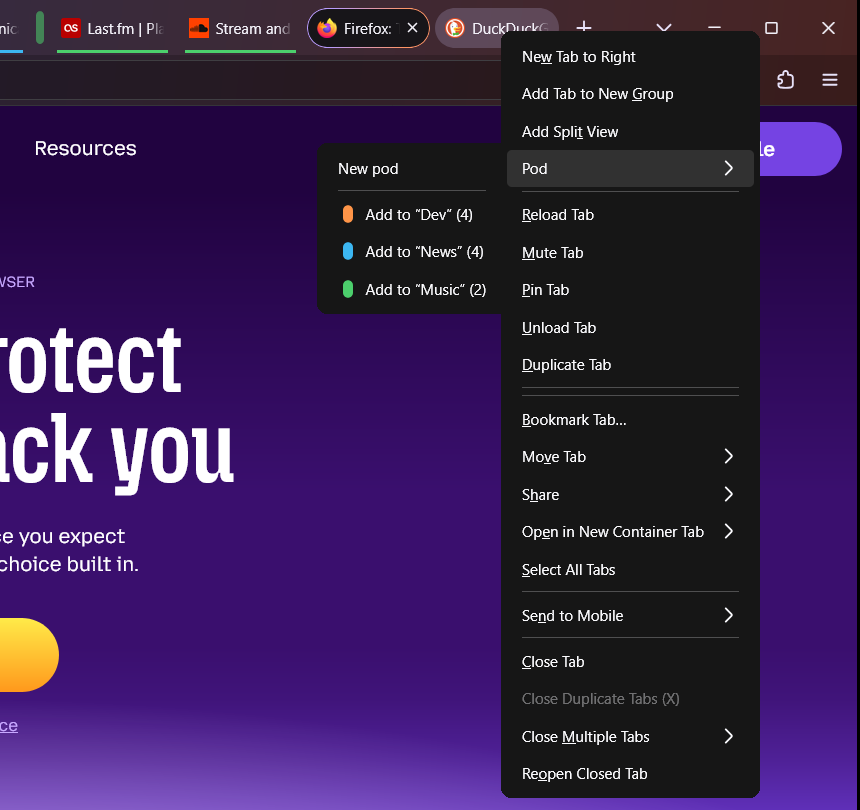
- Create a pod: select one or more tabs (Ctrl+click), right-click a tab → Pod → New pod.
- Add tabs: right-click → Pod → Add to “…”, or drag the tabs into the pod.
- Remove tabs: right-click → Pod → Remove from pod, or drag them out.
- Collapse / expand: left-click the capsule.
- Rename, recolor, unload inactive tabs, ungroup, close all tabs of the pod, collapse or expand all pods: right-click the capsule.
Installation
Firefox add-ons (WebExtensions) cannot change the tab strip like this, so TabPods is a userChrome.js script: a small JavaScript file that runs inside the Firefox user interface. Firefox needs a script loader for that, installed once.
- Install a userChrome.js loader. TabPods is tested with onemen/firefox-scripts, the loader Tab Mix Plus uses. If you already use Tab Mix Plus, you already have it.
- Add TabPods. Open your profile folder (
about:support→ Profile Folder → Open Folder), open thechromefolder inside it (create it if there is none) and saveTabPods.uc.jsthere. - Restart Firefox. Right-click a tab: if you see a Pod item, TabPods is working.
Step-by-step instructions for the loader, updating and uninstalling are in the README.
The loader runs scripts with full browser privileges. Only put scripts you trust into the chrome folder.
Notes and limitations
- Tested with Firefox 158 on Windows 11, with and without Tab Mix Plus. Only the horizontal tab strip is supported, not vertical tabs.
- Pods belong to a window. A tab moved to another window leaves its pod.
- Tabs inside Firefox's own tab groups or split views cannot be put into pods.
- Unloading sees only the media Firefox reports: a video playing without sound does not keep its tab loaded. Tabs are checked once a minute. Unloaded tabs look like tabs not restored yet after a restart; to dim them, set
browser.tabs.fadeOutUnloadedTabstotrueinabout:config. - Since this is a userChrome.js script, a big Firefox update can break it. Please open an issue if it does.